
For Organizations that offer PA Day services (School Closures) and need to apply a PA Day service manually to a child, a manual credit must first be created for the Payer, followed by a manual invoice to the Subsidy Provider.
When creating these manual credits and invoices, it is important to ensure that the correct Fee Items and GL Accounts are selected.
- When crediting the Parent/Payer: Select the PA Day/School Closure Service Fee Item (childcare fee with childcare fee GL account)
- When invoicing the Subsidy Provider: Select the Subsidy Service Fee Item associated with the applicable PA Day service. (subsidy fee with subsidy fee GL account)
- Invoice and Credit Amount: The Invoice Amount and Credit Amount must be the same
Selecting the correct Fee Items, GL Accounts, and matching amounts will ensure that the transactions are recorded and reported correctly.
Example:
For manual credit to the payer
Childcare Service Fee Item:
- Description: PA Day/School Closure School Age Before and After
- GL Account: PA Day/School Closure School Age Fees
For manual invoice to the Subsidy Provider
Subsidy (SUB) Service Fee Item:
- Description: SUB School Age Summer Full Day
- GL Account: School Age Subsidy Fees
All of the above entries must have the same Branch Location.
Manual Credit for PA Day/School Closures – for Subsidized Families
For subsidized families, the Organization will credit the fees that are being collected from the Subsidy Provider. Therefore, a Manual Credit must be created for the Parent/Payer to offset the applicable PA Day fees.
- Go to Accounts Receivable
- Select Billing
- Select Manual Credit
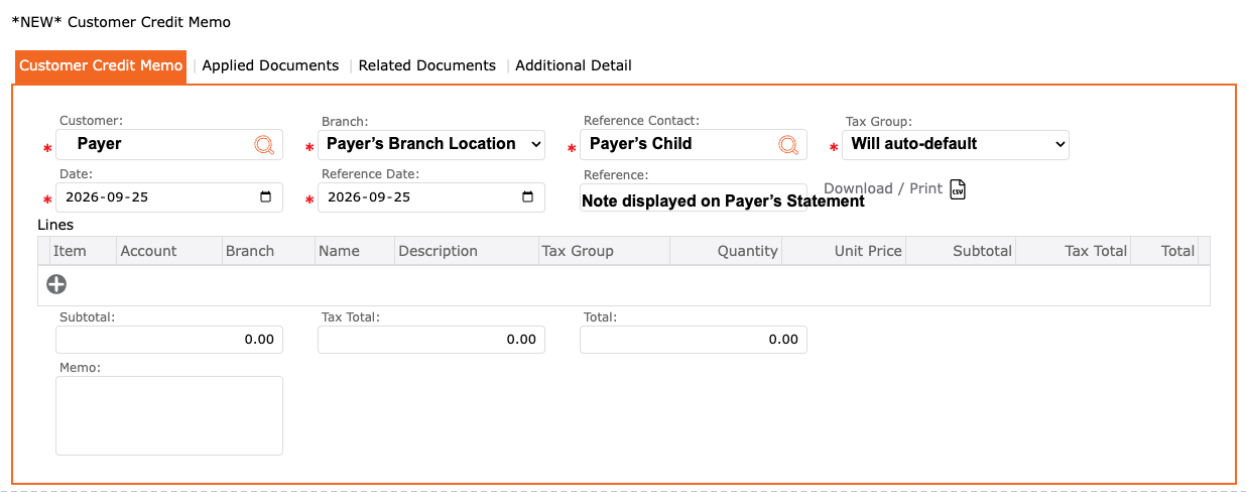
- Customer = Payer (Parent/Guardian)
- Branch = Payer’s Branch Location
- Reference Contact = Child’s Name (for this PA Day)
- Tax Group = System will auto-populate
- Date = The Date must be correct and should be set to a date within the month being billed.
- Example: If the PA Day was scheduled in August, but you are processing the manual credit and invoice in September, the date entered must still be a date within August, as this is the month the PA Day service applies to.
- Reference Date = Same as Date
- Reference = Note that displays on the Payer’s Statement
NEXT: Add the Childcare Service Fee Item
- In the Lines table, Select the “+”
- Item= Select the PA Item.
- For this example: PA Day/ School Closure
- Account= System will default the associated GL Account
- (note: the red X will adjust once you select the Branch)
- Branch= Select the Payer’s Branch Location
- Description= System will default the description as per the Item selected
- Quantity= System will default to 1
- User can adjust if needed
- Unit Price= System will default as per the price associated to this Item
- User can adjust if needed
- Subtotal= System will calculate as per Quantity and Unit Price
- Item= Select the PA Item.
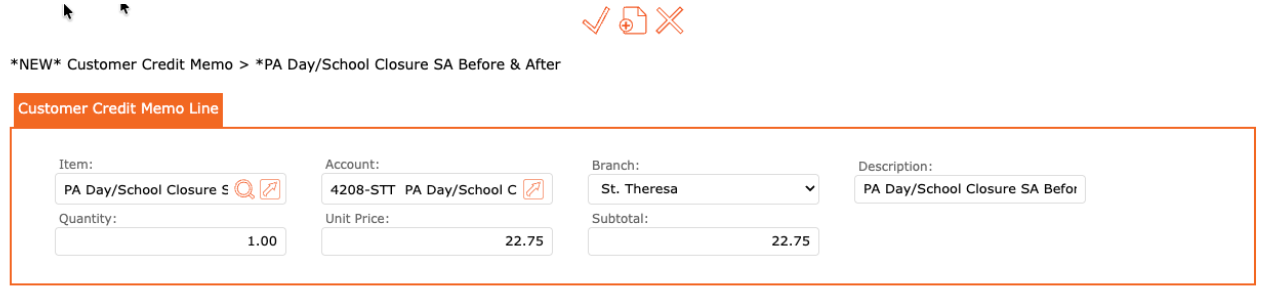
Click the checkmark to apply and return to the previous screen.
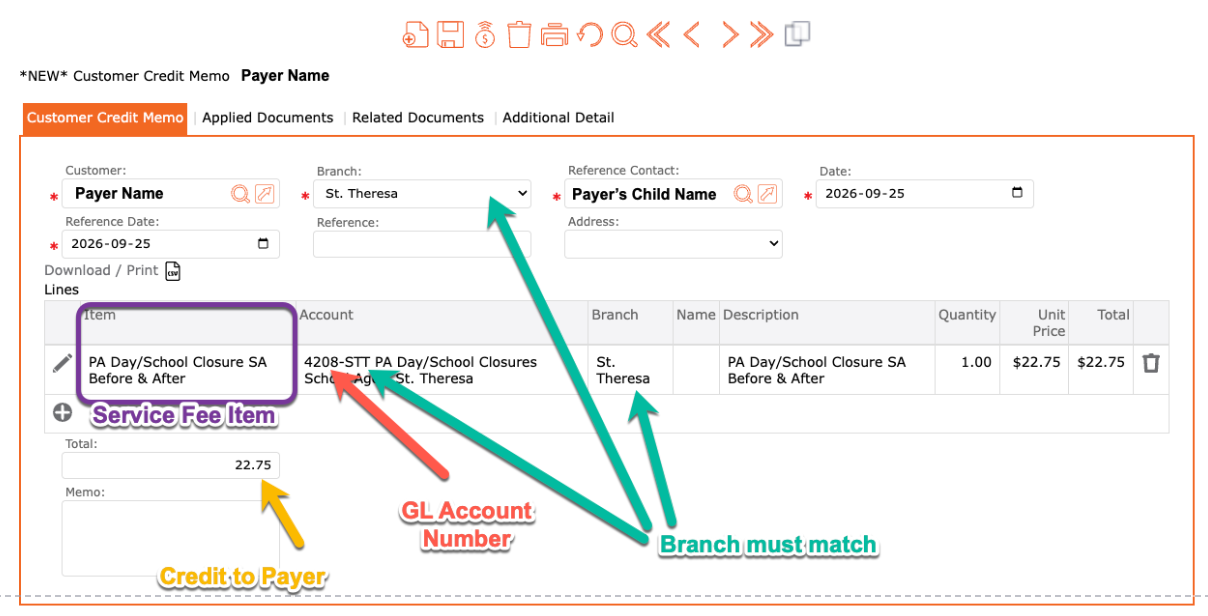
- Review all information for accuracy:
- Customer = The Payer/Parent/ Guardian who has the susbidy approval
- Payer’s Branch and Line Item Branch = Must match
- Reference Contact = The Payer’s Child
- Date = Preferrably the date of the PA Day, if not, then a date within the month of this PA Day billing period
- Reference Date = Same as Date
- Lines table:
- Item = The childcare service that the child is scheduled to attend/associated with.
- In this example: PA Day/School Closure SA Before & After
- Account = GL Account for this PA Day and this Branch
- in this example: 4208 STT PA Day/School Closures School Age
- Total = Be sure this is the amount to CREDIT to the Payer
- Item = The childcare service that the child is scheduled to attend/associated with.
TO COMPLETE: Click the POST icon
Manual Invoice for a PA Day/ School Closure to the Subsidy Provider
For subsidized families, if the Organization needs to collect the applicable PA Day fees from the Subsidy Provider in order to credit the family, a Manual Invoice must be created for the Subsidy Provider.
- Go to Accounts Receivable
- Select Billing
- Select Manual Invoice
- Customer = Subsidy Provider
- Example: Prov of ON – School Age*
- Branch = Payer’s Branch Location from the manual credit*
- Reference Contact = Child’s Name from the manual credit*
- Tax Group = System will auto-populate
- Date = The Date must match the same date used for the manual credit to the Payer
- Reference Date = Same as Date
- Reference = Note that displays on the Statement
- Customer = Subsidy Provider
To Select the Correct Subsidy Provider:
- Click the magnifying glass icon in the Customer field
- Select the Role = Subsidy Provider
- Click GO to display all Subsidy Providers set up in your system
- Click the Edit Pencil icon to select the Subsidy Provider that is associated to this Age Group
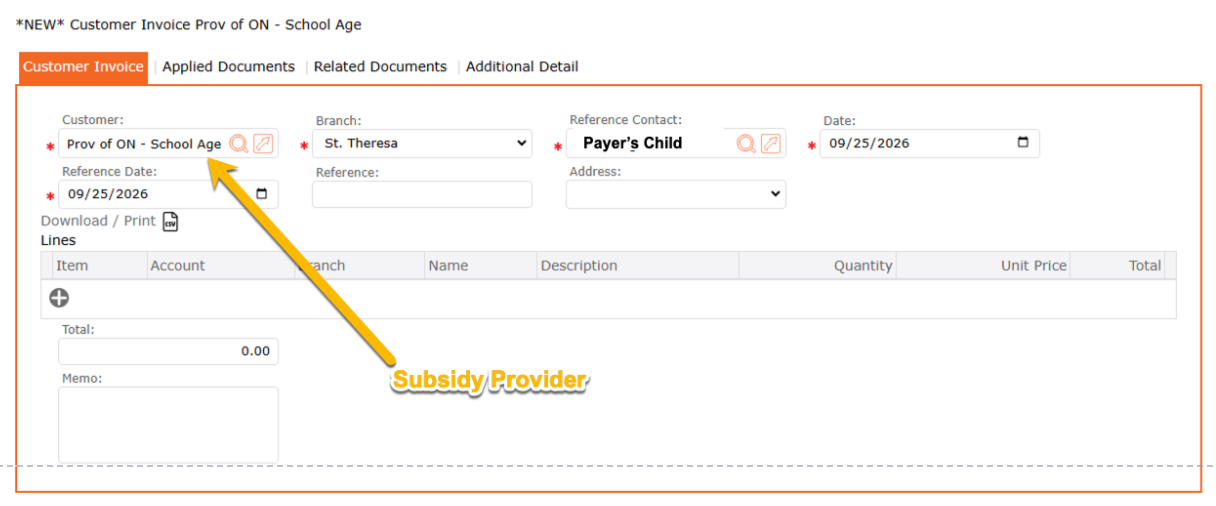
For accurate reporting and proper GL Account records, it is IMPORTANT to understand that the Manual Invoice and Manual Credit must use the same Branch Location, Total Amount, Child Name, and Date.
These details must match on both the Manual Invoice and Manual Credit to ensure the transactions are recorded and reported correctly.
*Subsidy Provider:
Must be the Subsidy Provider associated to this Item’s Age Group
*Branch:
Must be the same Branch that was selected for the manual credit posted to the payer’s account.
*Reference Contact:
Must be the same Child referenced in the manucal credit posted to the payer’s account.
NEXT: Add the Subsidy Service Fee Item (typically with the “SUB” prefix)
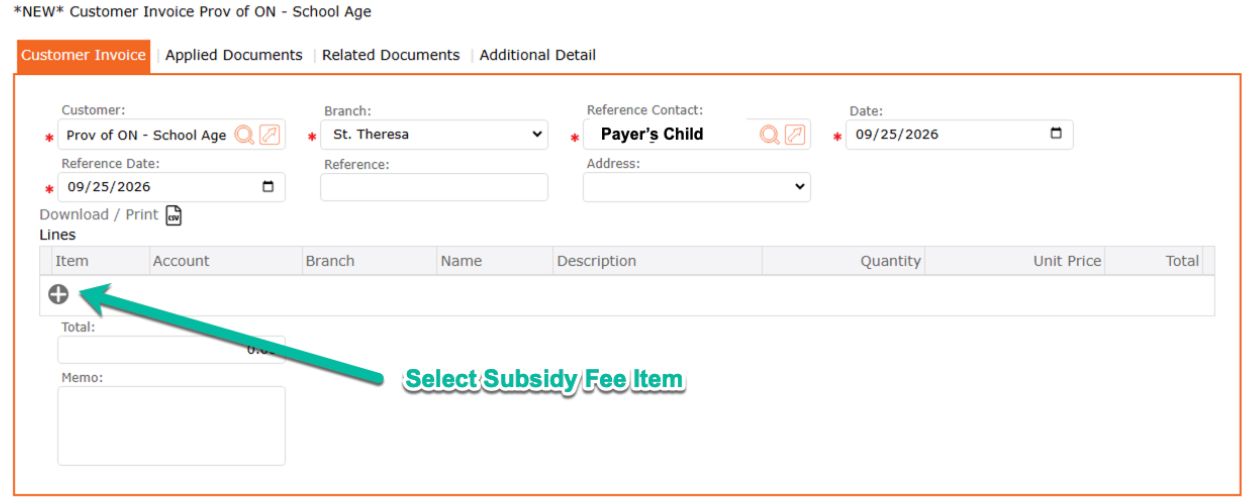
- In the Lines table, Select the “+”
- Item= Select the SUB (Subsidy) Fee Item
- For this example: SUB School Age Summer Care
- Account= System will default the associated GL Account
- (note: the red X will adjust once you select the Branch)
- Branch= MUST match the Branch used in the Manual Credit to the Payer/Parent
- Description= System will default the description as per the Item selected
- Quantity= System will default to 1
- User can adjust if needed
- Unit Price= System will default as per the price associated to this Item
- User can adjust if needed
- Subtotal= MUST match what was posted in the Manual Credit to the Payer/ Parent. (The System will calculate as per Quantity and Unit Price
- Item= Select the SUB (Subsidy) Fee Item
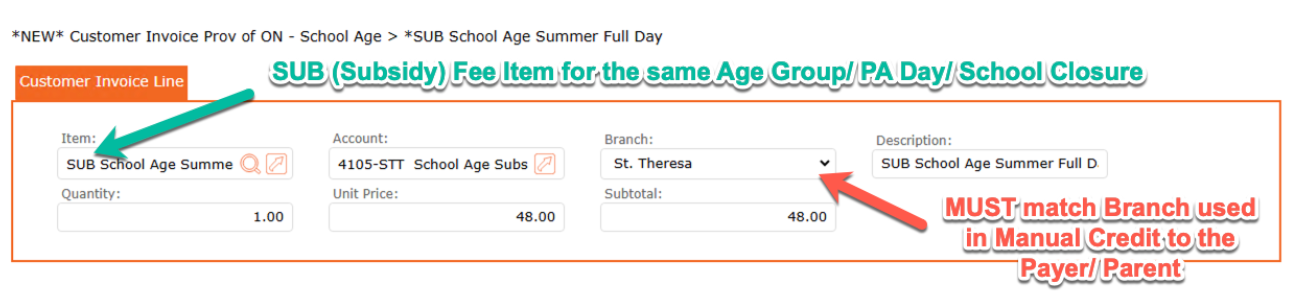
Click the checkmark to apply and return to the previous screen.
- Review all information for accuracy:
- Customer = Subsidy Provider
- Payer’s Branch and Line Item Branch = Must match with manual credit
- Reference Contact = The Payer’s Child (must match the manual credit)
- Date = Must match the manual credit
- Reference Date = Same as Date
- Lines table:
- Item = The SUB (Subsidy) Fee Item that relates to the Childcare Fee Item
- In this example: SUB School Age Summer Full Day
- Account = GL Account for this Subsidy Fee and this Branch
- in this example: 4105 STT School Age Subsidy Fees
- Total = Must match the total amount in the manual credit
- Item = The SUB (Subsidy) Fee Item that relates to the Childcare Fee Item
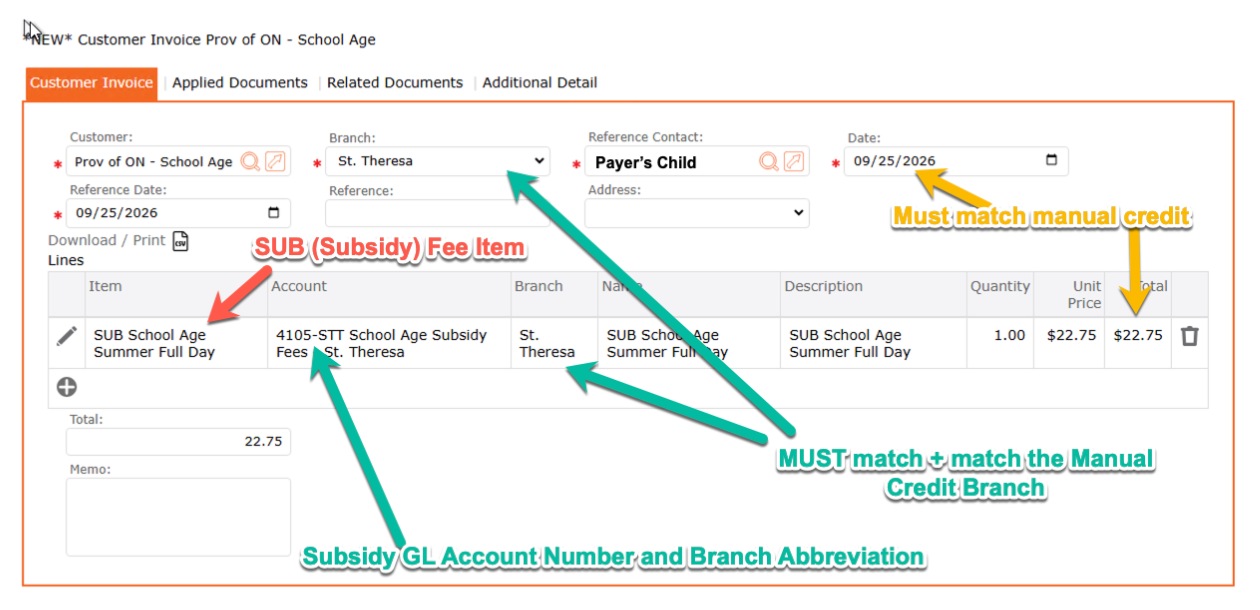
TO COMPLETE: Click the POST icon
Voiding a manually posted document
A great feature of Manual Invoices and Manual Credits is the ability to void a document if it was created incorrectly.
Although a document is voided, it will remain part of your accounting history and can always be located through the Find Document section for future reference.
To void a manual document:
- Take note of the document number you want to void:
- For Manual Invoices, the document number will begin with the prefix = CIN
- For Manual Credits, the document number will begin with the prefix = CCM
- Next, go to Accounts Receivable
- Select the Find Document
- In the Search Text Field, enter the document number
- Click GO
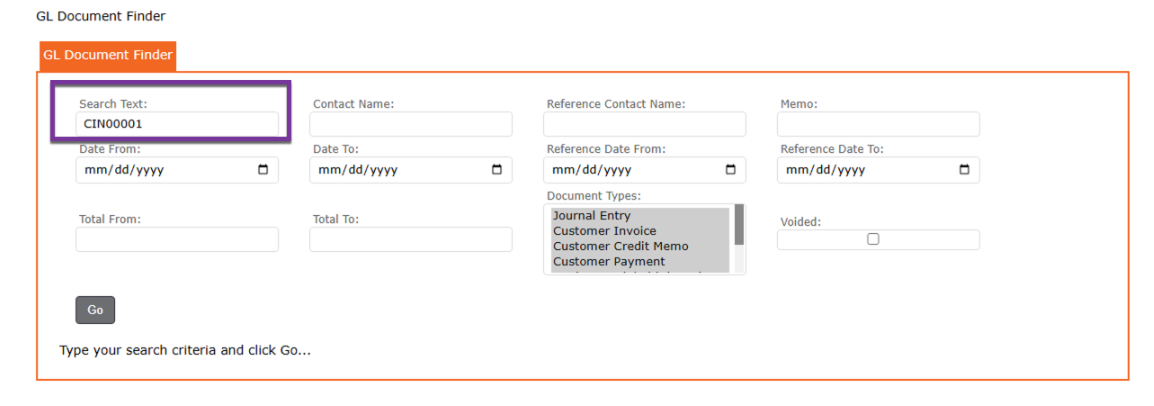
- Select your document by clicing the Edit Pencil Icon
- Be certain that this is the correct document to void,
- Click the VOID icon to void.

Recap – Manual Invoices & Credits for Subsidy
Whenever creating a Manual Invoice and Manual Credit for subsidy fees, it is very important to confirm that both documents work together and balance correctly.
Items to Review:
- Childcare Fee Item: Confirm that the correct Childcare Fee Item is selected to correspond with the Subsidy Fee Item.
- Childcare GL Account: Confirm that the correct GL Account is selected for the Childcare Fee Item.
- Subsidy Fee Item: Confirm that the correct Subsidy Fee Item is selected to correspond with the Childcare Fee Item.
- Subsidy GL Account: Confirm that the correct GL Account is selected for the Subsidy Fee Item.
- Branch Location: The Branch Location must match on both the Manual Invoice and Manual Credit.
- Date: The Date must match on both the Manual Invoice and Manual Credit.
- Reference Contact: The Reference Contact must match on both the Manual Invoice and Manual Credit.
- Total Amount: The Total Amount must match on both the Manual Invoice and Manual Credit.
Ensuring that these details match will help maintain accurate billing, reporting, and GL Account records.