It is important that the start and end dates are properly set up and accurate.
To note, should the child have a birthday that ages them out, the system will automatically set their end date to their birth date. This can be overridden and updated as per the actual end dates.
Best practice to end services:
Whenever a service ends – click on the service – click on the “Click here to modify this service” found at the top of the child’s service. Update the end date to the last date served. Save.
TIP: Services can be set up ahead of time.
When ending an existing service, it is best practice to set up the next service immediately.
This helps ensure that scheduling continues without interruption and that billing remains seamless.
IMPORTANT: This should all be done before billing.
Avoid clicking the “DELETE” icon. Deleting a service can only be done when the State = NEW. Any service that has been billed will be voided or reprocessed when the delete icon is activated.
Steps to end a service:
- Go to the child’s account
- Select Services tab
- Select the childcare service you wish to end
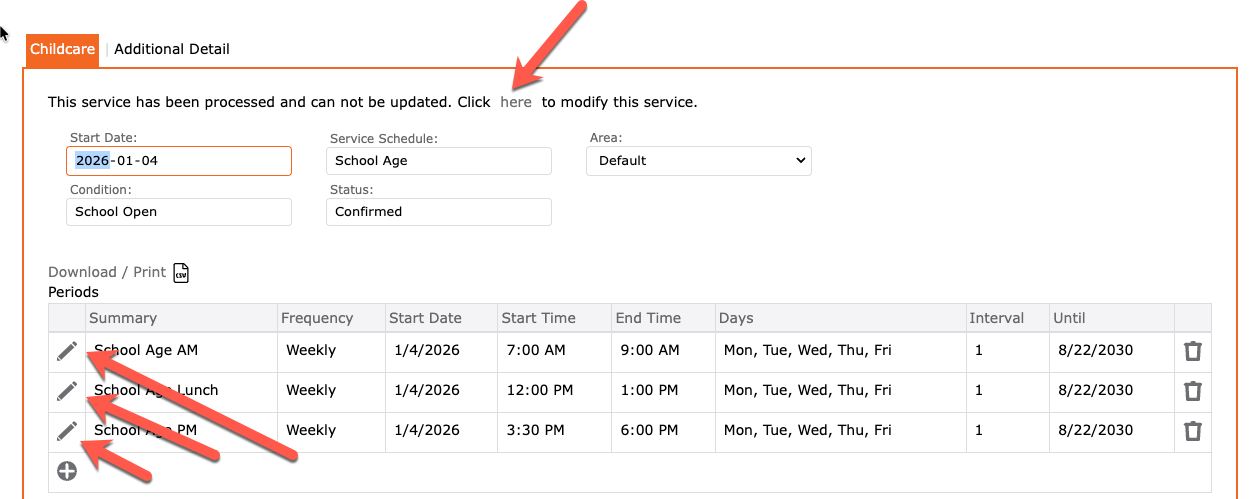
- Click on the here, where it says “This service has been processed and can not be updated. Click here to modify this service”
- Update effective date to the last day of service
- Click the checkmark to apply
- Click the SAVE icon to complete
For School Aged children:
- Go to the child’s account
- Select Services tab
- Select the childcare service you wish to end
- Click on the here, where it says “This service has been processed and can not be updated. Click here to modify this service”
- Update effective date to the last day of service
- Click the checkmark to apply
- THEN, click the edit pencil for each period
- Update the end date to the same last day of service
- Repeat for all periods
- Click the SAVE icon to complete