Through the Payer’s Guardian Portal account, the parent/guardian can register their child(ren) for available Camp Sessions that are open for registration and displayed on the portal.
Register for an Event/ Camp Session:
- From the Guardian Portal Dashboard:
- Go to Registration
- Select the Child you wish to register (blue checkmark)
- Click the NEXT button
- Under the Event:
- Click SELECT LOCATION button
- Select Location you wish to attend
- The system will display a list of possible sessions
- Review the session information,
- Click the SELECT button to select the event/camp you wish to register for
- Select the Event/Camp Session you would like to register the Child (blue checkmark)
- Click the NEXT button
- Review selections
- Click NEXT
- Apply payment method:
- Select existing payment method OR
- Add Payment Method:
- Click the “+ Add Payment Method Information”
- Follow the prompts and complete the information accordingly OR
- Select payment method already on account OR
- select payment method already
- Click on the REGISTER button
The system will ask you “Are you sure you want to complete the registration process
- Click YES to complete
- Click NO to return back to previous screen
- If YES to complete:
- the system will display the registration confirmation message: “Your registration is now complete for [Child’s Name]”
- Click OK to close window
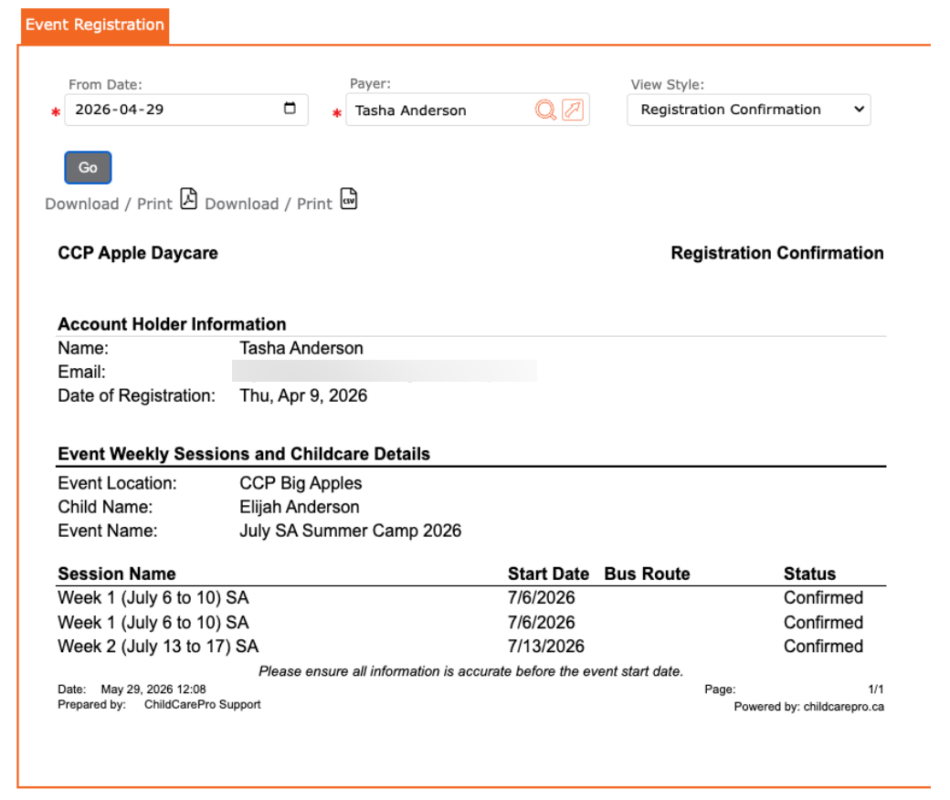
Registration Confirmation
The Parent/ Guardian/ Main Account Holder will receive an email with the Event/ Camp Registration that they have completed.
To view/ download/ print the registration confirmation:
- Go to left menu > Reports
- Select Child
- Select Services
- Select Event Registration
- From Date = select Date
- Payer = enter the name of the payer who registered for the child
- View Style = Registration Confirmation
- Click GO
- Click the PDF icon to download/ print