- Create a Bad Debt Account called “Bad Debt ”
- Create an Customer item call “Bad Debt”.
- Create a manual credit to the parent and select the customer item Bad Debt and post.
To create a new Account:
- Go to Setup
- Select Accounting
- Select Chequing
- Scroll down to the bottom
- Click “+ add account”
- Enter the information for the new account
- Click the SAVE icon to save information
To create a New Customer Item:
- Go to Setup
- Select Accounting
- Select Item
- scroll down to the bottom
- click “+ add customer item”
- Enter the information for the new item
- Add the item price
- click the checkmark to apply
- click the SAVE icon to save all
To create a manual credit:
- Go to Accounts Receivable
- Select Billing
- Select Manual Credit
- Enter information
- Customer = Payer
- Branch = will auto populate if there is a Branch associated to the payers account. If NOT, please see below “How to Add a Branch to a Payer’s Account”
- Reference contact = typically the child
- Reference = Note displayed on the statement
- Memo = Internal notes
- Enter Line item, click the “+”
- Find the new “Bad Debt” item
- Quantity = can be overridden
- Unit Price = can be overridden
- Review entries for accuracy
- Click the POST icon when ready to complete
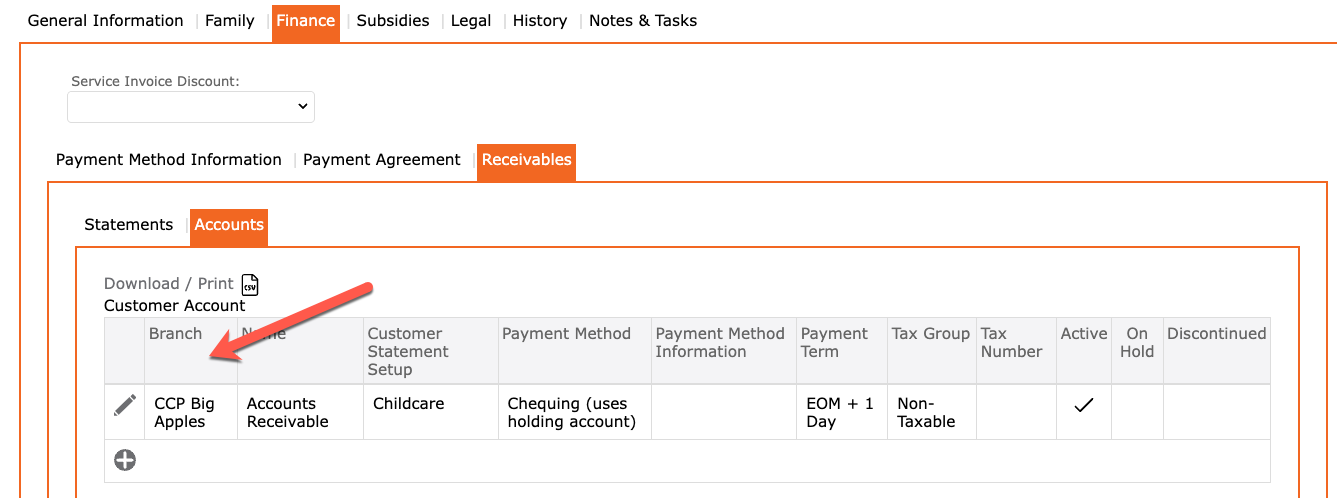
How to Add a Branch to a Payer’s Account:
- Go to Contacts
- Search for the Contact/ Payer
- Open their account
- Go to the Finance tab
- Select Receivables
- Select Accounts
- Click the “+” to add the Branch Location
- Click the checkmark to apply and return to the previous screen
- Click the SAVE icon to complete