Batch Customer Invoices can be used to bill the same fee to multiple payers at one time.
Before creating batch invoices, ensure that each child’s payer has been designated as a Default Payer within the child’s account. This allows the system to identify the correct payer to invoice for each child.
Steps to set up the Default Payers:
- Go to Contacts > Find the Child > Open the Child’s Account
- Select their Service tab
- Select the Billing Defaults tab
- Click “+ Add Child Default Payer”
- Enter the applicable information
- Click the SAVE icon to complete
Steps to create Batch Customer Invoices:
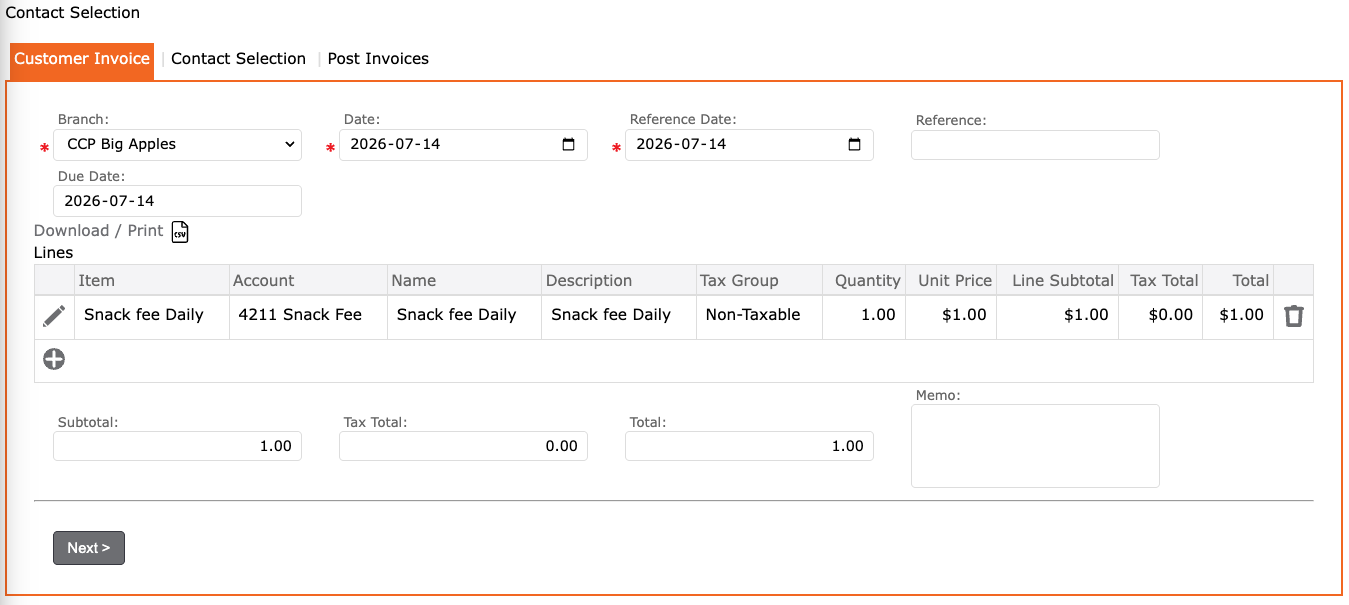
Customer Invoice tab:
- Go to Accounts Receivable
- Select Batch Customer Invoices
- In the Customer Invoice tab:
- Select Branch
- Date
- Reference Date
- Reference = a note that displays on the payer’s statement
- Due Date
- Lines table
- Click the “+” to add the Fee Item> tab off
- Account = should auto populate when you tab off
- Description
- Quantity
- Unit Price
- Subtotal
- Click the checkmark to apply
- Review Information
- Click NEXT
- Lines table
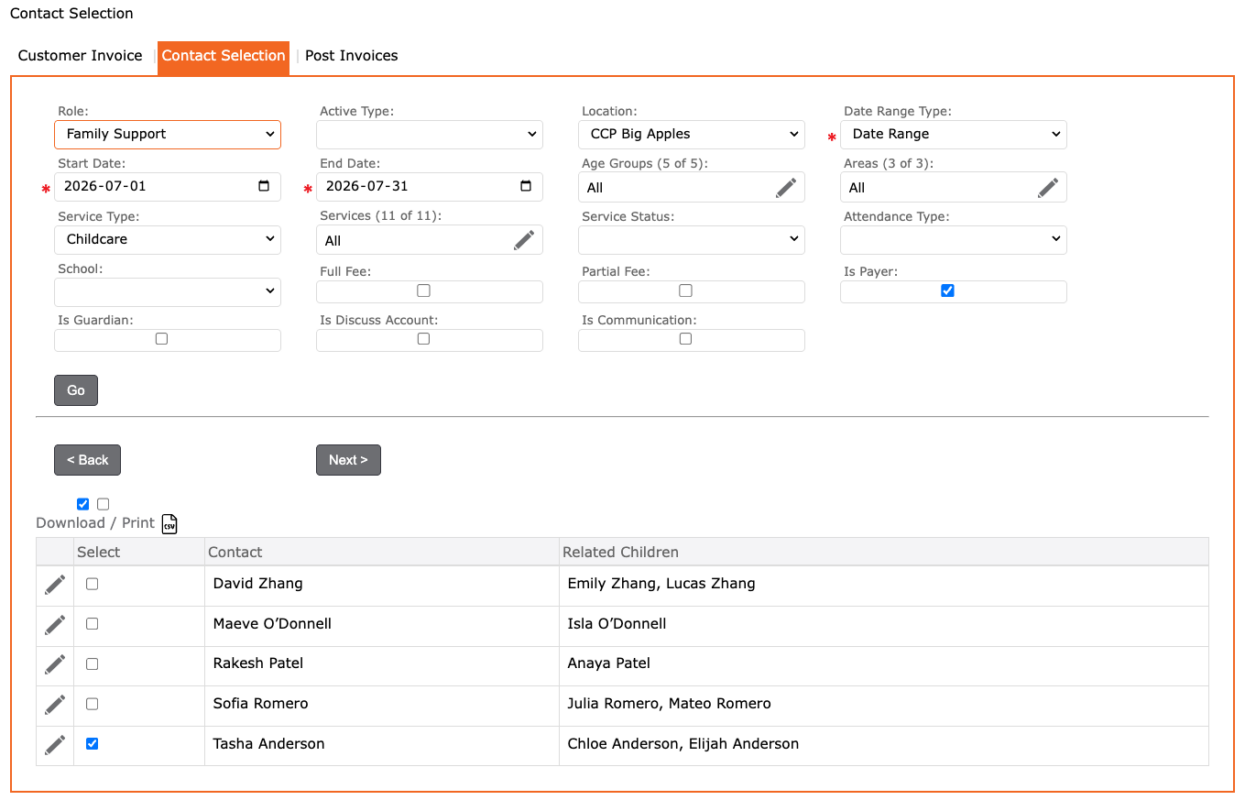
Contact Selection tab:
- In the Contacts Selection tab:
- Select filters to find the payers you would like to charge the sunscreen fee
- Click GO to display list of payers
- Select the payers you would like to charge (blue checkmark)
- Review selections
- Click the NEXT
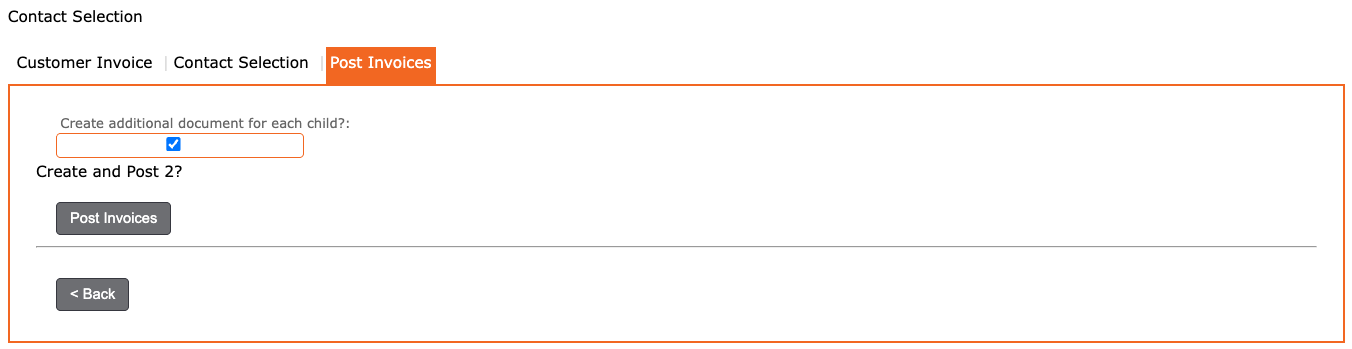
Post Invoices tab:
- In the Post Invoices tab:
- Review
- “Create additional document for each child?”:
- Select this option if you want to apply an invoice (document) to each child associated with the payer.
- Leave this option unselected if you want to apply one invoice (document) per payer, regardless of how many children are associated with that payer.
- Click the POST INVOICES button to complete