
Once the events are live and registration has opened, you can review event details, as well as the lists of enrolled and waitlisted children.
- Go to the left menu > Registration
- Select Events
- Select the Locations
- Select Dange Range
- Select the Start Date of the Camp or Session(s)
- Select the End Date of the Camp or Session(s)
- Select the Age Groups (if applicable)
- Select the Services = Camps
- Select Bus Routes (if applicable)
- Click GO
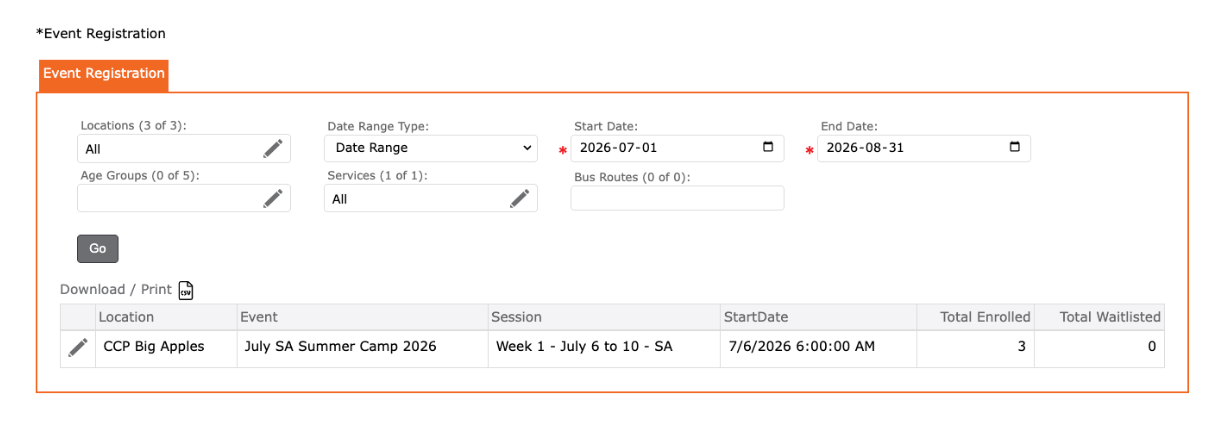
- The system will display all events as per the fields selected above
- Click the Edit pencil to view details
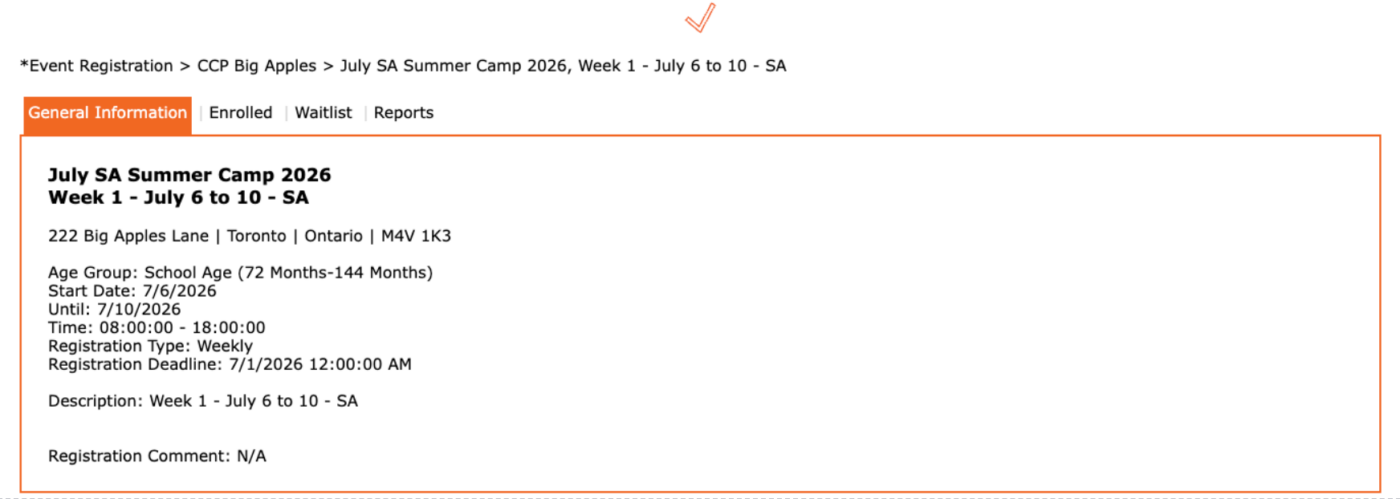
The General Information tab:
- Displays Camp Session Details
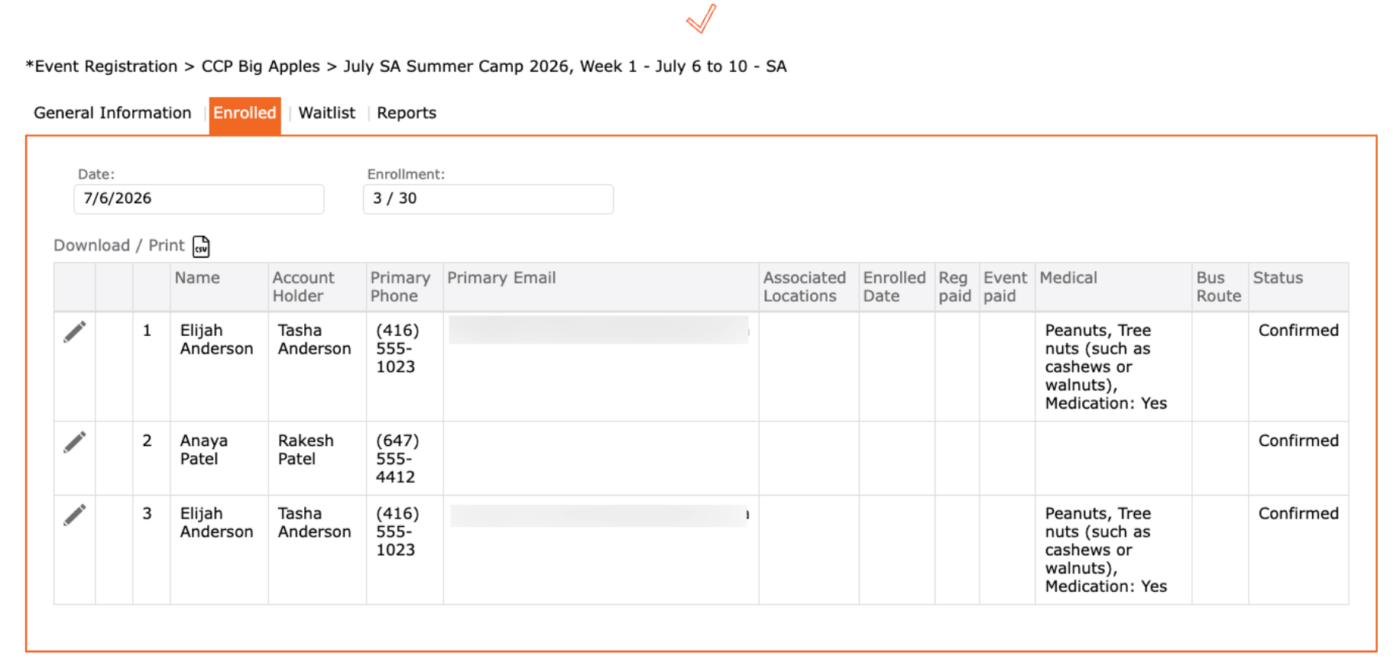
The Enrolled tab displays:
- The Date – first day of session
- Current enrollment
- Displays the Children Enrolled for the Camp with addtional details:
- Child’s Name
- Account Holder’s Name (Main Contact/ Payer)
- Account Holder’s Phone Number
- Account Holder’s Primary Email
- Associated Locations (if applicable)
- Enrolled Date
- Registration Paid
- Event Paid
- Medical (Allergies recorded in the Child’s health tab)
- Bus Routes (if applicable)
- Status
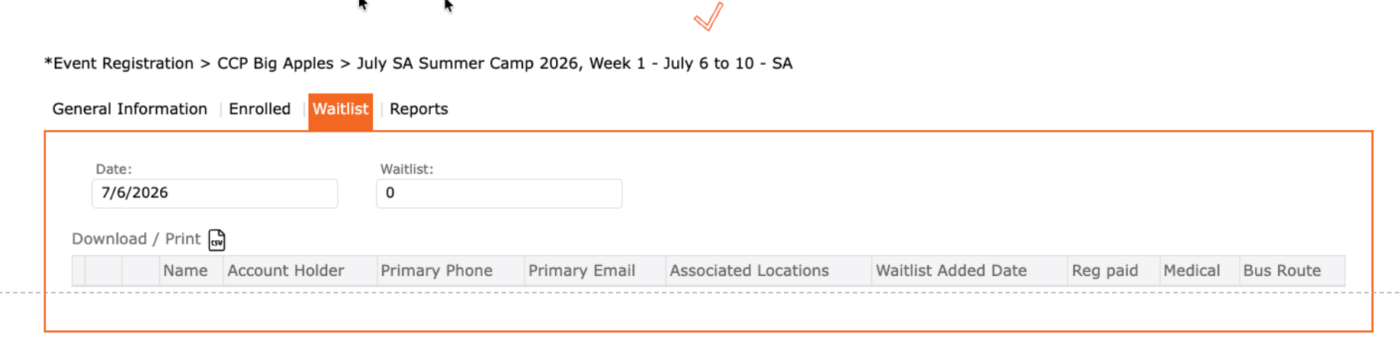
The Waitlist tab displays:
- Children marked as waitlisted for the session
Applicable Reports:
- Child Emergency Report:
- Displays child’s general information, family support contacts, health information
- To access: Reports > Child > Programming > Child Emergency
- Child Identification Card:
- Displays child’s general information, emergency contacts, health information
- Prints in lanyard format
- To access: Reports > Child > Programming > Child Identification Card
- Child Profile:
- Displays child’s account profile (all data entered into their account)
- To access: Reports > Child > Programming > Child Profile
- Child Registration:
- Displays the child profile report plus any completed consent/ intake forms
- To access: Reports > Child > Programming > Child Registration
- Enrollment Report:
- Displays daily enrollment for the Event/Camp
- To access: Reports > Attendance > Enrollment: View Style “Enrollment List – Camps”
- Event Registration:
- Displays Registration Confirmation, addressed to the Payer, event details, event session details
- To access: Reports > Child > Services > Event Registration > View Style: “Registration Confirmation”