
Setup
First, be sure to have a Refundable Registration GL Account created.
Second, create a customer item for the Refundable Registration Fee.
***Please reach out to your CCP Team Lead to get these setup (GL Account and Item).
Once these items are created, you can then create a Manual invoice for this Refundable Registration, followed by a Statement to the payer, then apply the Payment.
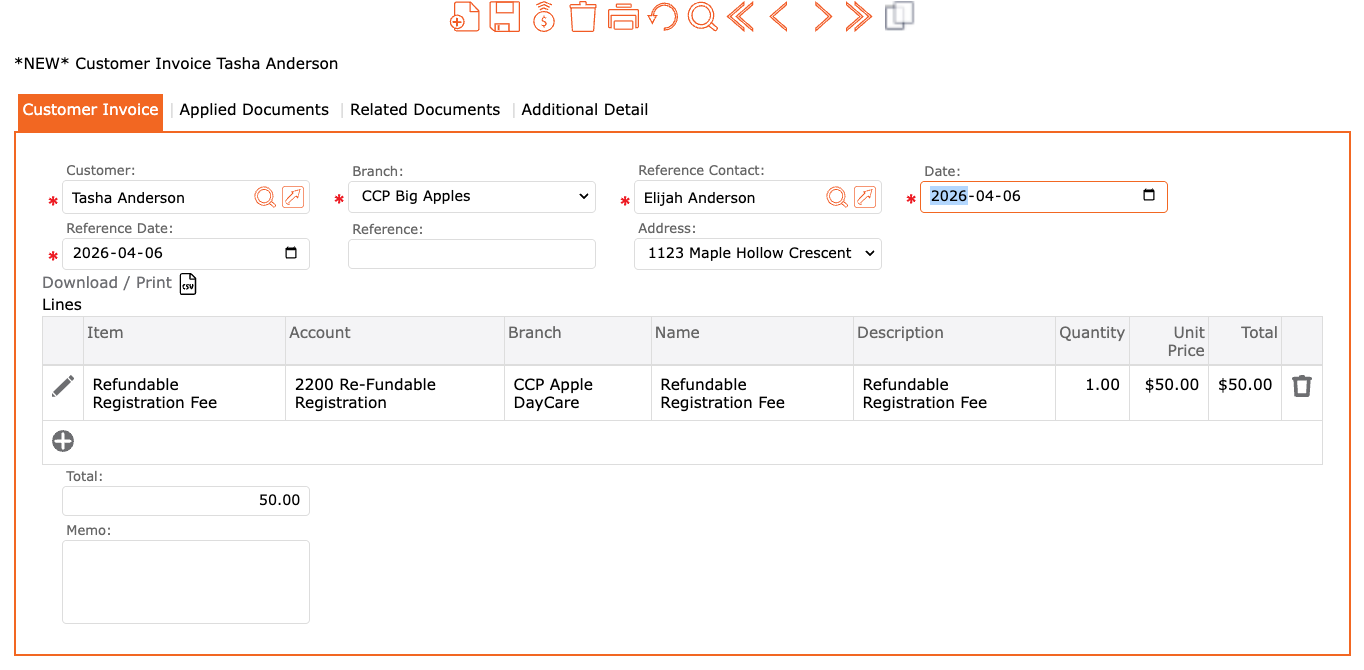
To create a manual invoice:
- Accounts Receivable
- Billing
- Manual Invoice
- Customer = Enter the parent/guardian/payer name (tab off to auto-populate fields)
- Reference Contact = Child’s Name
- Date = Date for this invoice
- Reference Date = Same as Date
- Reference = Note to display on Payer’s statement
- Lines:
- Click the “+” to add the fee
- Item = Select your refundable registration fee customer item, tab off to auto-populate Account
- Branch = The location (branch) the payer belongs to
- Description = Refundable Registration Fee
- Quantity = 1
- Unit Price = Update to the refundable registration fee price
- Select the orange checkmark to apply
- Review for accuracy
- Click the “+” to add the fee
- Click the POST icon to complete
Create a Statement to the Payer
- Accounts Receivable
- Statements
- Preview Statements
- Select Branch for the Payer
- Select the Period for the Invoice you just created
- Contact = Enter the Payer’s name
- Click GO
- Select the statement for the Payer you just invoiced with a blue checkmark
- Review for accuracy
- Click the PUBLISH button to complete
Apply the payment collected for the refundable registration
- Accounts Receivable
- Payments
- Process Batch Payments
- Mode = Manual Payments
- Branch = Select Branch associated to Payer
- Click GO
- Select the Payer
- Review amount (adjust if necessary)
- Select the Payment method to process (type of funds received)
- Click the CREATE button to complete
NEXT: To refund that refundable registration, please see: