
Applying a discount to an account holder:
There are 3 places for the discount.
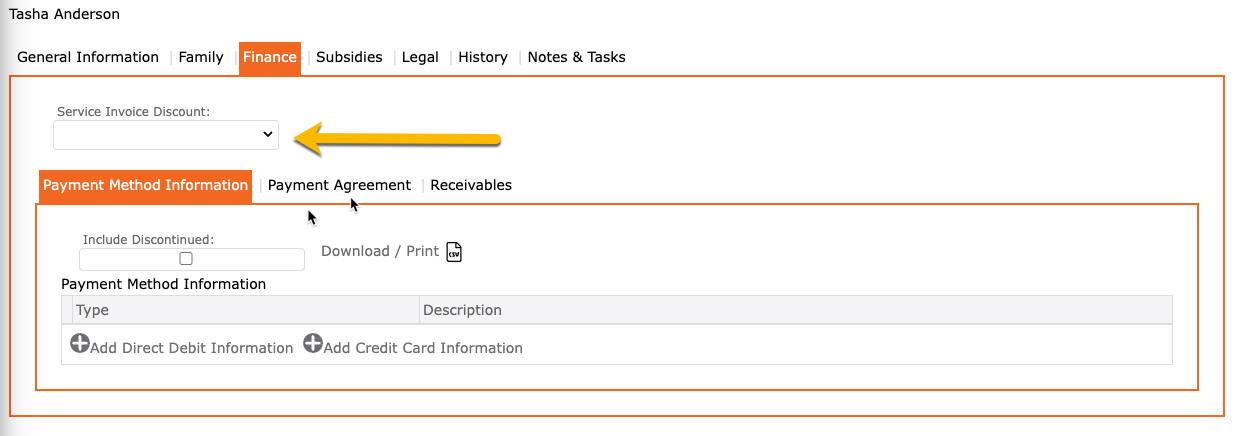
- On the payer under their finance tab = applies a discount to all services associated to this payer’s account.
- To access:
- Go to the payer’s account > Finance tab
- Select the discount from the “Service Invoice Discount” dropdown
- Click the SAVE icon to save
- To access:
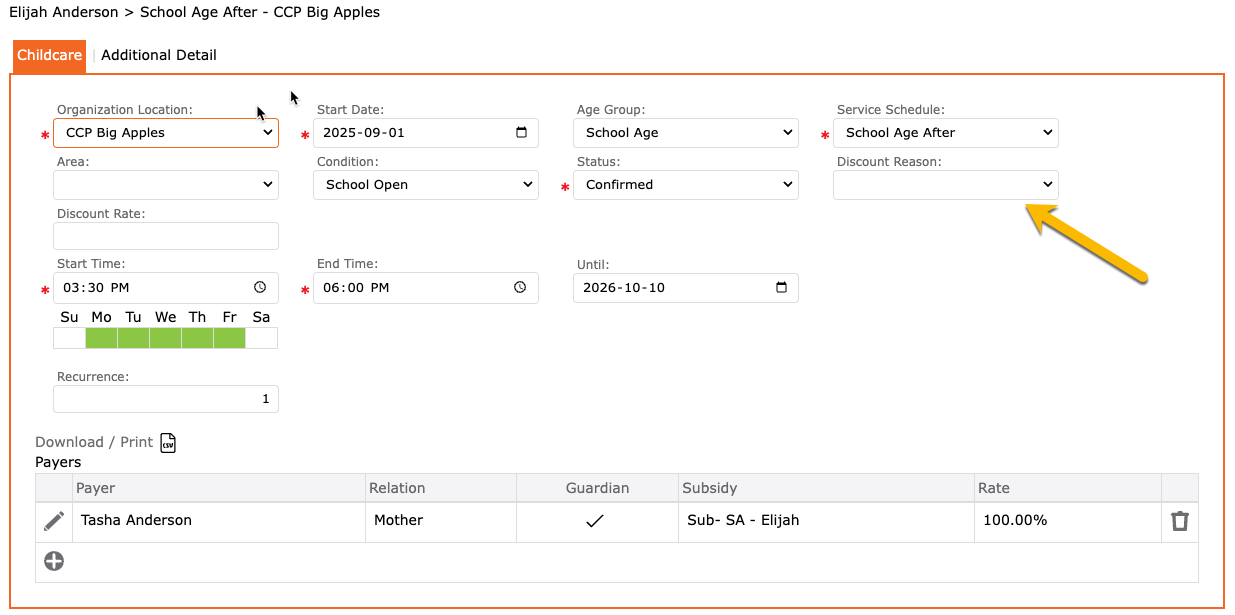
- On the child’s service = applies the discount to the service, giving the discount to all associated payers.
- To access:
- Go to the child’s account > Service tab
- Select the childcare tab
- When adding a new service > select the discount from the “discount reason” dropdown
- Enter all other important information
- Add your payers
- Click the checkmark to apply
- Click the SAVE icon to save all.
- To access:
- On the payer on the service = applies the discount to this specific payer for this service only.
- To access:
- Go to the child’s account > Service tab
- Select the childcare tab
- When adding a new service – Enter all other important information
- Add your payers
- When adding your payer, select the discount from the “discount reason” dropdown.
- Click the checkmark to apply
- Click the SAVE icon to save all.
- To access:

The placement of the discount determines the order in which it is applied.
To set up a discount, see “How to Create a Discount”