
Payment reconciliation definition: Payment reconciliation is the process of comparing a company’s internal financial records with external statements (like bank statements, credit card statements, or vendor statements) to ensure all payments made and received are accurate and consistent. It helps identify discrepancies, errors, or missing transactions, and ensures that a business’s financial reporting is accurate and up-to-date.
In essence, it’s about making sure your financial records match what’s actually happening in your bank and other accounts.
To access to the payment reconciliation:
Go to:
- Accounts Receivable
- Payment Reconciliation
- To view an existing reconciliation:
- Click the Edit Pencil icon (note that it is better to view prior reconciliations from the reports—clicking here will just show which parents were included in the subsidy reconciliation—would have to click on each parent to see how much was reconciled whereas the report will show all
- To create a new reconciliation:
- Click “+ Add Payment Reconciliation
- Customer Statement Period = select the period you wish to work with
- Subsidy Provider = Select the Subsidy Provider
- Grant Provider = only applicable for grants (It is recommended to do grants and subsidy reconciliations separately)
- Branch = Select the Branch for this reconciliation
- Location = Select the Location for this reconciliation
- Include Pending Invoices = select only if you wish to include payments that have been marked as pending
- Click GO
- NEXT – Select the payers you wish to include in this reconciliation. It is best practice to deselect any payers for whom you have not yet received payment for.
- Once all payers are selected – click GO to generate your reconciliation
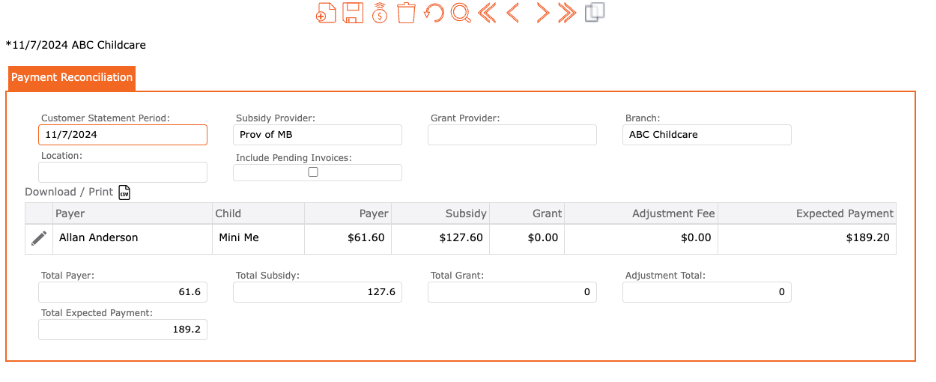
Your payment reconciliation has now been created.
Next, apply your payments.
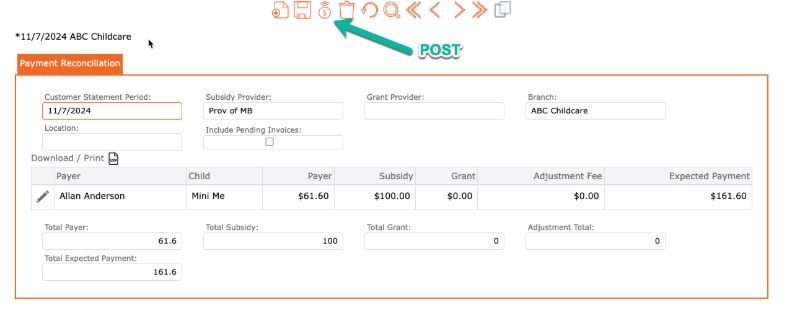
The system will automatically apply the entire expected subsidy payment to the payer. If you received a different amount, either more or less:
- Click on the Edit Pencil icon to the left of the payer’s name.
- In the payment column = enter the amount received > tab off
- This will display a new column “Action”. Actions are:
- Adjust Payer = This will add/reduce the difference to the payer’s account. This will post the adjustment to the account listed in the Adjustment Subsidy Fee Item found in the Subsidy Provider Setup.
- Pending = This will leave the difference outstanding for future reconciliation.
- Adjust Entry = This will add/reduce the difference to the subsidy provider’s account. It will post the adjustment to the account listed in the Write off item found in the Subsidy Provider Setup.
- Adjust Subsidy = This will add/reduce the difference to the subsidy provider’s account. This will post the adjustment to the account listed in the Lost revenue item found in the Subsidy Provider Setup.
- Select one of the actions to tell the system how you would like this payment to be applied.
- This will display a new column “Action”. Actions are:
- Review – click the checkmark icon found at the top of the screen to apply and return to the previous screen.
Applying payments to a subsidy provider through Customer Payment.
- Go to Accounts receivable,
- Payments,
- Manual Payment:
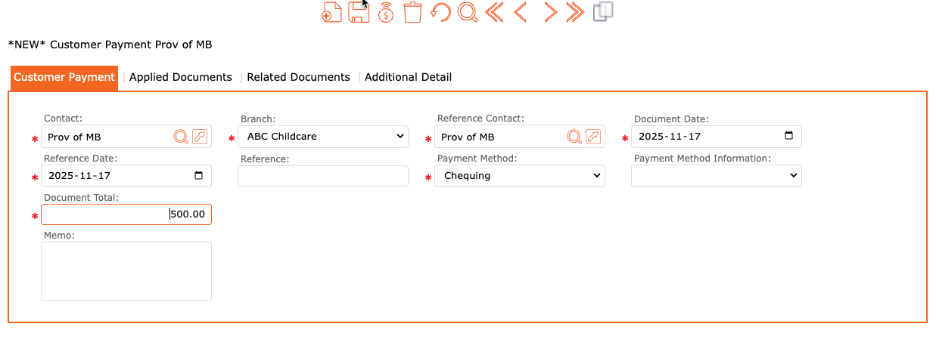
- Customer Payment tab:
- Contact = Province of Manitoba
- Document total = Enter the amount you received
- Customer Payment tab:
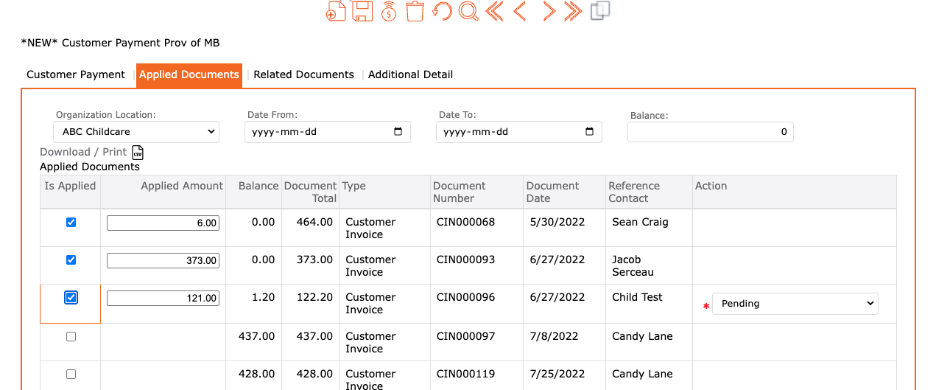
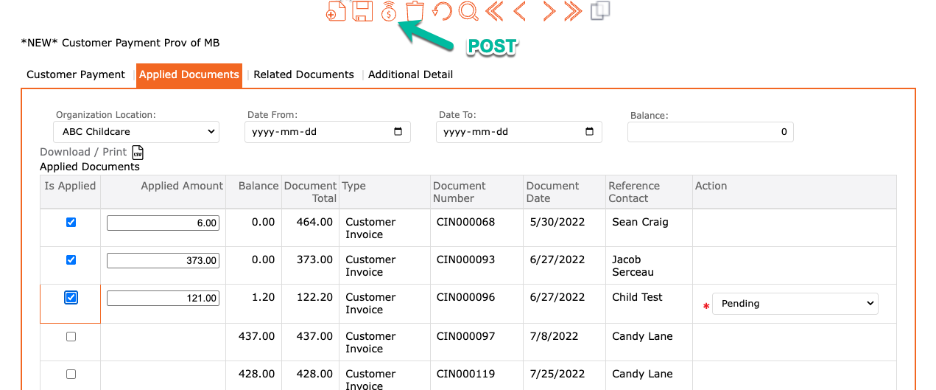
Applied Documents tab:
Select the children/ amounts to apply the document total
NOTE: The total of the amounts selected need to match EXACTLY the amount entered in the document total. If not, you will see an “action” displayed on the screen.
- Once completed – click the POST icon found at the top of the screen.
If you had a different total on the applied documents from the Customer payment screen, you would get an error—you will need to start the process over again as the system is not allowing you to correct at this point.
Report: Payment Subsidy Reconciliation
To review documents and any payments applied, please use the report “Payment Subsidy Reconciliation”.
To access:
- Reports > Accounting > Billing > Payment Subsidy Reconciliation
Report is grouped by Branch and displays the following information:
- Billing Period,
- Document Number
- Subsidy Invoice total
- Payer
- Child
- Payment Number
- Reconciled Subsidy Payment Total (posted through the reconciliation process)
- Other Applied Number
- Other Applied Total (posted as manual payment)
- Unreconciled subsidy balance
When applying a payment through the customer payment = the report will display these amounts under the “Other Applied Account”.
Select the PRINT button to view the reconciliation document.
Troubleshooting if dates were incorrectly entered:
Once a payment has been posted through the payment reconciliation process, it cannot be reversed.
There are a couple of options to handle this going forward:
- You can wait for the January (next) payment and post it as the December (past) reconciliation (the amounts should be identical for this to resolve the issue)
- You can go post the December reconciliation now and not post anything for January when you receive your funds.
- You can post invoices to the Subsidy Provider and charge them to a cash account—you would have to create an item for this. This would recreate the receivables so that they are once again in the January reconciliation file. You could then post your December reconciliation.