
Option 1: What Email Service Do You Use?
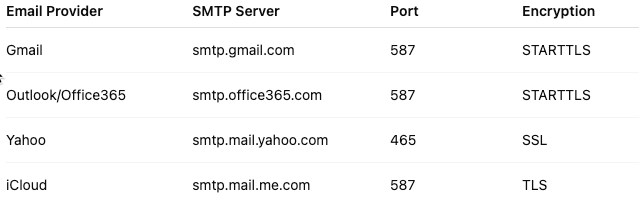
If you’re using a common provider like Gmail, Outlook, or Yahoo, here are the typical SMTP settings:
Option 2: If You Use an Email App (like Outlook or Apple Mail)
You can also find your SMTP info inside your email app. If you’re using:
Outlook (Windows)
- Go to: File > Account Settings > Account Settings
- Select your email account > click Change
- Look for Outgoing mail server (SMTP) and Port
Apple Mail (Mac)
- Go to: Mail > Preferences > Accounts
- Select your account, then click Server Settings
- You’ll see the SMTP server and port listed there
Option 3: Custom Email Domain
If your email ends in something like @yourcompany.com, your SMTP details are usually provided by your email hosting provider (such as GoDaddy, Bluehost, WIX, or other).
You can do a quick search here: https://www.godaddy.com/en-ca/whois
This site can help you figure out who owns the site.
IMPORTANT: Gmail – SMTP connections
Gmail requires the use of an App Password for SMTP connections.
To generate a Gmail App Password, please follow the steps below:
- Sign in to your Google Account.
- Go to Security.
- Make sure 2-Step Verification is enabled.
(If it is not enabled, please turn it on first.) - Under Signing in to Google, click App passwords.
- Select App: Mail.
- Select Device: Other and enter a name (e.g. “SMTP”).
- Click Generate.
- Google will generate a 16-character App Password.
- Copy this password and use it as the SMTP password instead of your regular Gmail password.
CONFIRMATION MESSAGE
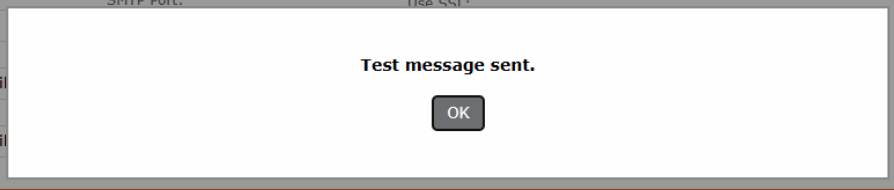
When you save the credentials, if you receive a ‘ Test message sent’ screen then it means credentials are working.
Business Email Vs. Personal Email
Email regulations and provider requirements (including Google) have become increasingly strict. When bulk or repeated emails are sent from a non-business (personal) email address, they are much more likely to be flagged as spam. In some cases, this can also cause your email carrier to temporarily limit or stop your ability to send outgoing communications altogether.
For this reason, we strongly recommend using a business email address (for example: info@mydaycare.com). Business email systems are designed for higher-volume communication and include safeguards that help ensure your messages reach recipients’ inboxes reliably.
As a best practice, we also recommend staggering bulk email sends rather than sending a large volume all at once. For example, sending emails in smaller batches (such as 20–30 emails at a time, spaced out over intervals) helps reduce the risk of spam filtering and protects your email sender reputation—especially when communicating with multiple payers.
Business email accounts also provide stronger security, better data protection, and clearer records of communication—especially important when handling payer or financial information. They help ensure your messages are taken seriously, delivered consistently, and managed professionally.
In addition, under Canada’s Anti-Spam Legislation (CASL), organizations are expected to clearly identify themselves when sending electronic communications and to use appropriate systems for business-related messaging. Using a business email supports compliance with these requirements and reduces the risk of delivery or communication issues.
Overview: Why Email Rules Have Changed #
Email providers such as Google (Gmail), Microsoft (Outlook), Yahoo, and Apple have tightened their rules to reduce spam, fraud, and phishing. As of January 2026, these providers expect businesses to clearly prove who they are and to follow responsible email-sending practices.
If a business does not meet these expectations, its emails may be delayed, sent to spam, or blocked entirely. This affects everyday business communications such as invoices, receipts, notifications, newsletters, and customer updates.
These requirements are no longer optional. They are now considered standard practice for any organization that sends email to customers or clients.
Core Requirements All Businesses Should Meet #
1. Email Authentication (Essential) #
Email authentication is how a business proves that its emails are legitimate and truly sent on its behalf. There are three main components:
- SPF (Sender Policy Framework)
This tells email providers which systems are allowed to send email for your business domain. - DKIM (DomainKeys Identified Mail)
This adds a digital signature to each email, confirming the message has not been altered after being sent. - DMARC (Domain-based Message Authentication, Reporting, and Conformance)
This ties SPF and DKIM together and tells email providers what to do if an email fails authentication (for example, allow it, send it to spam, or block it).
As of 2026, major email providers expect all business domains to have SPF, DKIM, and DMARC properly configured. Without them, emails are far more likely to be rejected or filtered.
In simple terms: authentication acts like official identification for your email.
2. Use a Business Domain (Not Free Email Accounts) #
Businesses should send email from their own domain (for example, name@company.com), not from free accounts like Gmail or Outlook.com.
Using a business domain:
- Allows proper authentication (SPF, DKIM, DMARC)
- Improves credibility with email providers
- Reduces the risk of being blocked
Free email accounts do not provide the control needed to meet modern email standards.
3. Maintain a Good Sending Reputation #
Email providers track how recipients interact with your messages. They look at factors such as:
- How often emails are opened or replied to
- How many emails are deleted without being read
- How often emails are marked as spam
- How many messages bounce because addresses are invalid
If a business consistently sends unwanted or ignored emails, its reputation declines, and delivery problems increase.
4. Keep Email Lists Clean and Up to Date #
Sending emails to outdated or inactive addresses harms deliverability.
Best practices include:
- Removing invalid or bouncing email addresses
- Periodically removing contacts who have not engaged in emails for an extended period (typically 6–12 months)
- Avoiding purchased or third-party email lists
Clean lists signal to email providers that your messages are relevant and wanted.
5. Include Clear Unsubscribe Options #
For marketing or bulk email messages, a visible and easy-to-use unsubscribe option is required.
This:
- Reduces spam complaints
- Helps maintain compliance with anti-spam laws
- Improves long-term deliverability
Email providers expect unsubscribe links to work properly and to be honored promptly.
6. Control Email Volume and Sending Patterns #
Sending a large number of emails at once—especially from a new domain or new system—can trigger spam filters.
Best practices include:
- Sending emails in smaller batches
- Gradually increasing volume over time
- Avoiding sudden spikes in email activity
Consistent, predictable sending behavior builds trust with email providers.
What Happens If These Standards Are Not Met #
If a business does not follow current email standards:
- Emails may go to spam or be blocked outright
- Important messages (receipts, invoices, confirmations) may not be delivered
- The domain’s reputation may be damaged, making recovery difficult
These issues can impact customer trust and disrupt normal business operations.
Summary #
As of 2026, email providers assume business emails are untrustworthy unless proven otherwise. To avoid delivery problems, businesses should:
- Authenticate their email domain using SPF, DKIM, and DMARC
- Send email from a company-owned domain
- Monitor engagement and avoid spam complaints
- Keep email lists clean and current
- Provide clear unsubscribe options
- Send emails in reasonable, controlled volumes
Following these practices helps ensure business emails reach their intended recipients reliably and professionally.