
What is the process for cleaning up my accounts receivable, as in writing off the debts to clean up old errors or clear balances?
Create a customer item “write off” – You may want to create a financial account for this, check with your accountant.
Then create a credit to remove the balance owing.
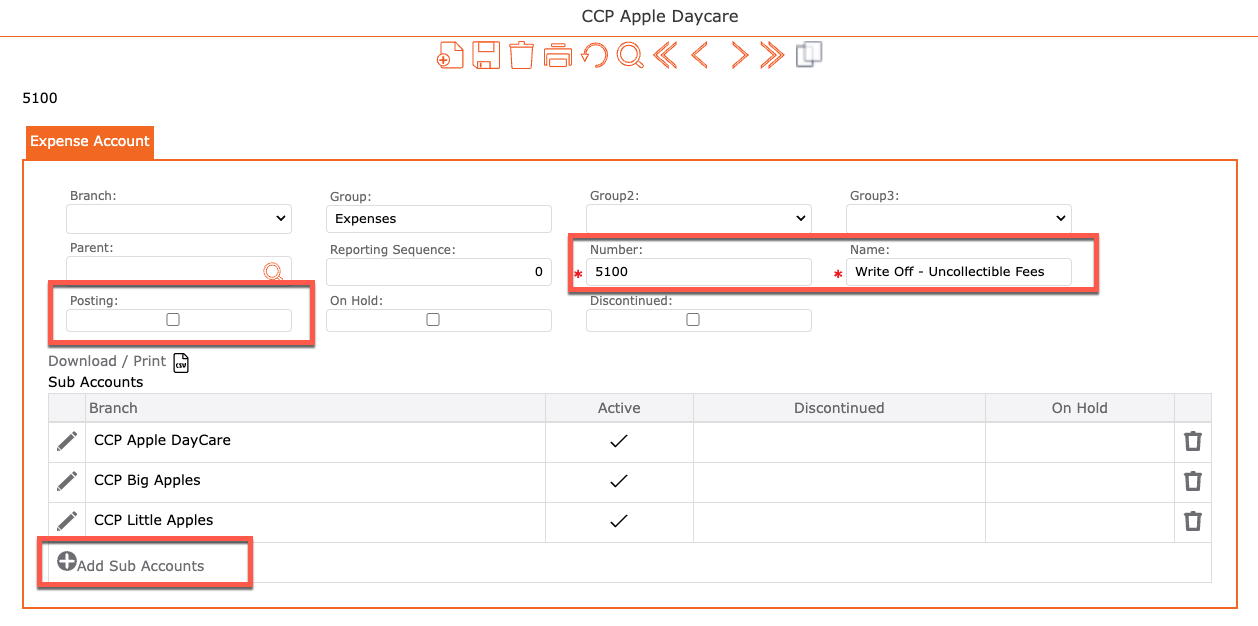
Step 1: Create an Expense account.
- Go to the left menu > Setup
- Accounting
- Accounts
- Expense
- Leave all fields as displayed other than
- Number = Enter your account number for this Write Off Account
- Name = Enter the name of this account (example: “Bad Debt – Uncollectible Fees”)
- SAVE
- To add sub accounts (multiple locations):
- De-select the Posting checkmark
- Click the “+ Add Sub Accounts”
Step 2: Create a Write Off Item
- Go to the left menu > Setup
- Accoutning
- Item
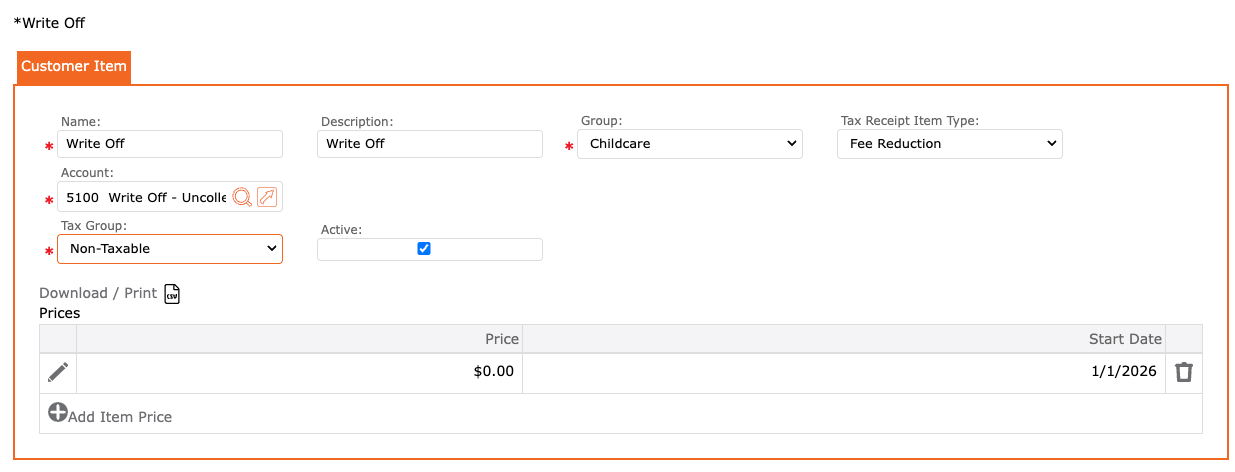
- Click “+ Add Customer Item”
- Name = Write Off
- Description = Write Off
- Group = childcare
- Tax Receipt Item Type = Fee Reduction (this will subtract the fees applied to the child, as well as adjust the Tax Receipt accordingly)
- Account = The Expense account created (Example: 5100 Write Off – Uncollectible Fees)
- Tax Group = Non-Taxable
- Active = checkmark
- Under Prices, Click the “+ Add Item Price”
- Price = $0.00
- Start Date = Select Date
- End Date = Select Date or leave as default 9999
- Click the checkmark to apply
- Click the SAVE icon to save all
Step 3: Create a manual credit to the contact with the bad debt/ etc.
- Go to the left menu > Accounts Receivable
- Billing
- Manual Credit
- Customer = Contact Name with bad debt
- Branch = Associated Branch for Contact
- Reference Contact = Contact’s child
- Tax Group = Non-Taxable
- Date = Date you wish to record
- Reference Date = Reference Date
- Reference = Note displayed on the statement
- Lines:
- Click the “+”
- Select the Write Off Item
- Account = Associated Account (Expense Account created)
- Branch = Associated Branch
- Description = Write Off (auto-populate)
- Quantity = Can be overridden
- Unit Price = Enter the price for the bad debt/ write off > tab off
- Review > Click the checkmark to apply
- Review all information entered
- Click the POST icon to complete

Reports for reference:
- Account Activities (All)
- Displays activities for the Accounts > Locate the new Account created (example: 5100 Write Off – Uncollectible Fees)
- To access:
- Go to the left menu > Reports
- Accounting
- Billing
- Account Activities (All)
- Contact Ledger
- Displays the Contact’s account balance.
- To access:
- Go to the left menu > Reports
- Accounting
- Billing
- Contact Ledger